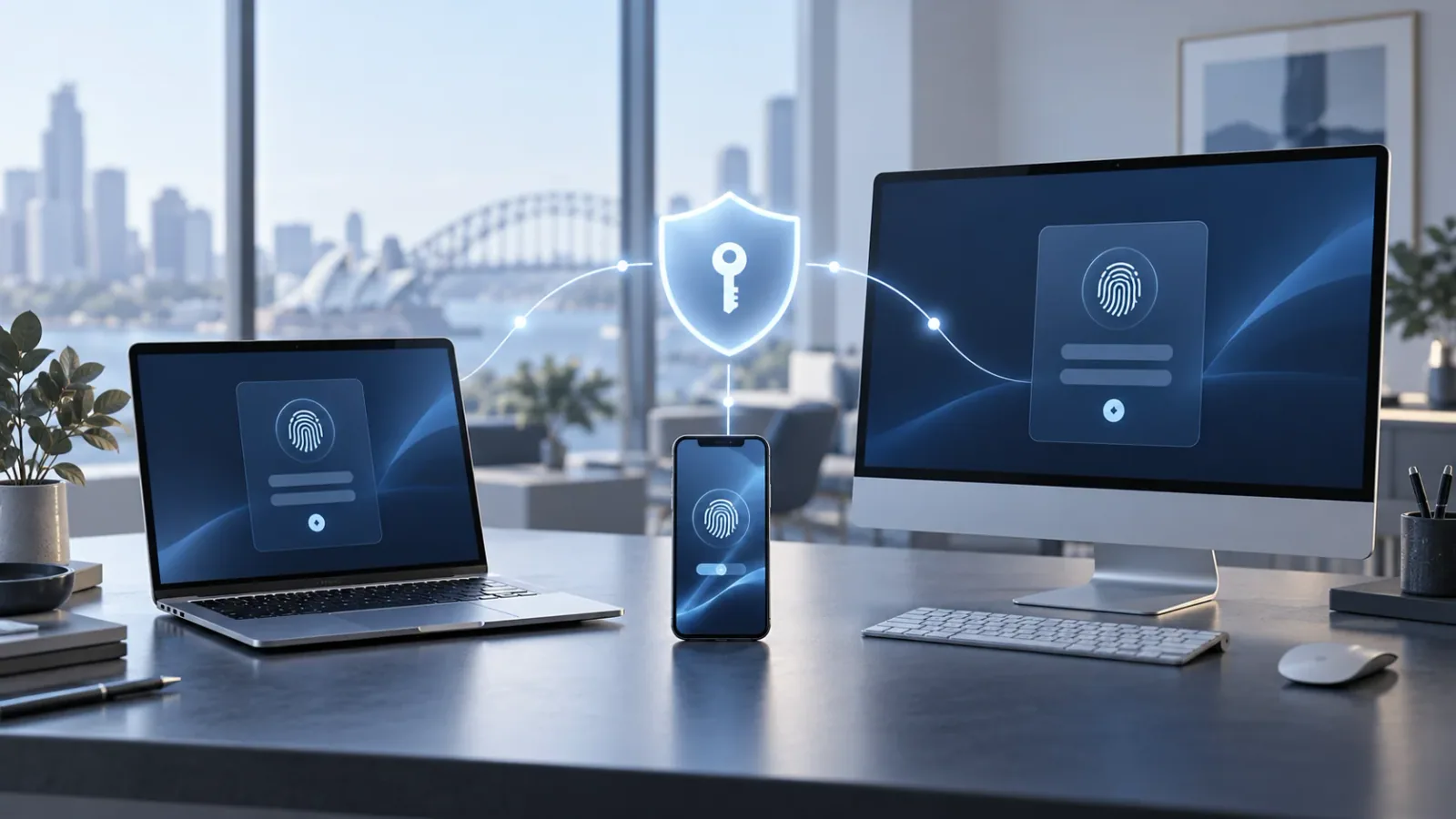
You can sign in to Salesforce on your work laptop, but your second computer keeps asking for a passkey it cannot find. The missing detail is often where the passkey was saved: on one device, in a synced password manager, or on a physical security key.
This guide explains the choices, the temporary-code route for a new computer, and how to keep access manageable as your devices change. It focuses on employee Salesforce access, with guidance checked on 6 October 2026.
What is a passkey?
A passkey is a cryptographic sign-in credential. The service holds a public key; your authenticator protects the private key and proves you have it when you sign in. You approve its use with a device unlock method, such as a fingerprint, face recognition or PIN. Your fingerprint is not a password you send to Salesforce.
Passkeys are designed to resist phishing by tying authentication to the legitimate service. They also remove the need to remember another secret. They still depend on sensible device security and account recovery. How passkeys work, from the FIDO Alliance.
Why is Salesforce asking for one now?
Salesforce has been strengthening MFA requirements during 2026, including phishing-resistant verification for privileged users. Passkeys and suitable security keys support that stronger standard. Your prompts depend on your role, registered methods and organisation’s setup; a colleague’s experience may differ.
Passkeys are not simply a new Winter ’27 feature. Salesforce listed passwordless passkey login as generally available in April 2026. A passkey can also be used after a password as the MFA step, so seeing a password prompt does not mean the passkey has failed. Salesforce enforcement guidance; passwordless login release note.
Choose where to keep it before you register it
| Option | How it fits your working day |
|---|---|
| Synced password manager | Available across compatible devices through your approved manager. |
| Device-bound passkey | Stays on one device; register another method for other computers. |
| Physical security key | A portable authenticator for compatible devices. |
Salesforce supports these approaches. Confirm your choice with IT. Salesforce passkey options.
Add a passkey on a second computer
For separate device-bound passkeys, use this sequence:
- Keep your working sign-in method on the first computer.
- Ask a Salesforce admin or authorised support person for a temporary MFA verification code.
- On the second computer, sign in with your credentials and enter the code at the MFA prompt.
- Open your personal settings, find Passkeys and choose Add Passkey.
- Complete the device’s registration prompts, then test sign-in on that computer.
This registers a separate credential. Salesforce multiple-device setup.
What does the temporary code actually do?
It provides temporary MFA access while you set up a usable method. An admin chooses an expiry of 1–24 hours; the code can be used again until it expires. It is not your new passkey and does not replace separate verification for an unfamiliar browser or app.
When finished, you can expire it in personal settings under Advanced User Details (or Personal Information), beside Temporary Verification Code. Salesforce temporary-code instructions.
Using 1Password or another password manager
With 1Password, create the passkey through the website’s registration flow and accept the extension’s offer to save it to a Login item. Later, use its passkey prompt to sign in. Install and unlock the approved manager on the devices where you need access, and test the complete Salesforce login before relying on it.
Deleting a passkey in 1Password does not remove its registration from Salesforce. Manage the credential in both places when retiring it. 1Password’s save-and-use guide.
Apple Passwords / iCloud Keychain synchronises passwords and passkeys across approved Apple devices. Google Password Manager also stores passwords and passkeys with encryption. Pick an approved provider based on your device mix and recovery process, rather than choosing whichever prompt appears first. Apple’s cross-device guidance; Google Password Manager guidance.
Salesforce also lists Bitwarden and Dashlane among its setup options. Supported setup choices.
Manage existing passkeys and old devices
From personal settings, search for Passkeys. If that page is unavailable, check Advanced User Details and its Built-in Authenticators section. Some security keys appear separately under Security Key (U2F or WebAuthn).
Review registrations when you replace equipment. Delete the obsolete passkey or key from the relevant management page, but first confirm another approved method works. For a lost device, involve your administrator rather than removing methods at random and risking a second lockout. Salesforce passkey management.
Passkey questions and answers
Can I have more than one passkey for the same Salesforce user?
Yes. Register each device-bound credential on its device. Multiple-device instructions.
Can I generate the temporary code myself?
Not simply because you can log in. Salesforce directs users to an admin or someone delegated MFA support permissions. An admin who is locked out should ask another admin. Account access guidance.
Do I need a new passkey on every device?
No. Synced passkeys or portable keys can work across compatible devices. Compare the options.
What if I lose my only device?
Contact your Salesforce admin through your normal support process. Salesforce documents a temporary-code recovery route. If you are the only admin, follow its dedicated recovery instructions rather than assuming another user can issue a code. Locked-out account instructions.
Is a temporary code a one-time password?
It is temporary, but not necessarily single-use: it remains usable until expiry. Keep it private and expire it when no longer needed. Temporary-code rules.
Does this apply to our customer community?
Salesforce excludes Experience Cloud sites from this employee setup. Scope and availability.
Does using a passkey mean I will never type my Salesforce password again?
Not necessarily. Passwordless login depends on the organisation’s configuration. Passkeys can also satisfy an MFA step after password entry. Passwordless setup information.
Can I remove an old passkey after getting a new laptop?
Yes, through Salesforce’s passkey management pages. Adaptal recommends testing the replacement first, then removing the retired credential in Salesforce and its storage provider as applicable. Manage registrations.
Make secure access easy for your team.
Adaptal recommends documenting the approved storage provider, enrolment steps, backup method and recovery contact before rolling this out. Test with the same browsers and devices your users have.
Talk to us about Salesforce accessAlso reading about the release? Explore our top 10 Salesforce Winter ’27 updates and rollout Q&A.
Need help with Salesforce access?
We can review your login setup, user access and rollout requirements.